Importing from Apple Music
What it is
GP-33 brings your Apple Music library over in one go: your songs, your playlists and the folders they sit in. Apple Music is never touched, and nothing is copied until you've seen what's coming.
Export your library from Apple Music
In Apple Music, choose File → Library → Export Library… and save the file. It's called Library.xml. A big library makes a big file, which is normal.
Start the import
In GP-33, open Settings → files and press Import. Then Choose Library.xml… and pick the file you saved.
GP-33 reads the file first. A thin bar under Reading Library.xml… shows how far it's got.
The preview
Before anything is copied, GP-33 shows what would happen:
- How many songs would come over, how many are new, and how many are already here.
- What isn't coming over, and why. Save list… saves those songs as a spreadsheet, so you can look through them.
- The room it needs. Too little room and the line turns red, and Import stays off until there's room.
- Your playlists, the biggest first.
macOS asks once
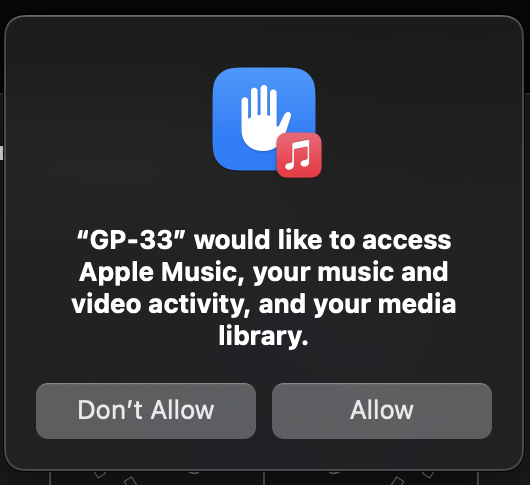
While the preview is being made, macOS asks: "GP-33" would like to access Apple Music, your music and video activity, and your media library. Choose Allow. GP-33 needs it to read the songs Apple Music keeps. macOS asks once, and never again.
Importing
Press Import. The crate fills in as the songs come over.
You can close the panel. The import keeps going, and a line in the app shows how far it's got. Click the line to bring the panel back.
Once the songs are in, GP-33 reads each new song's tags so it can file them, and the bar starts over for that. Then it builds your playlists.
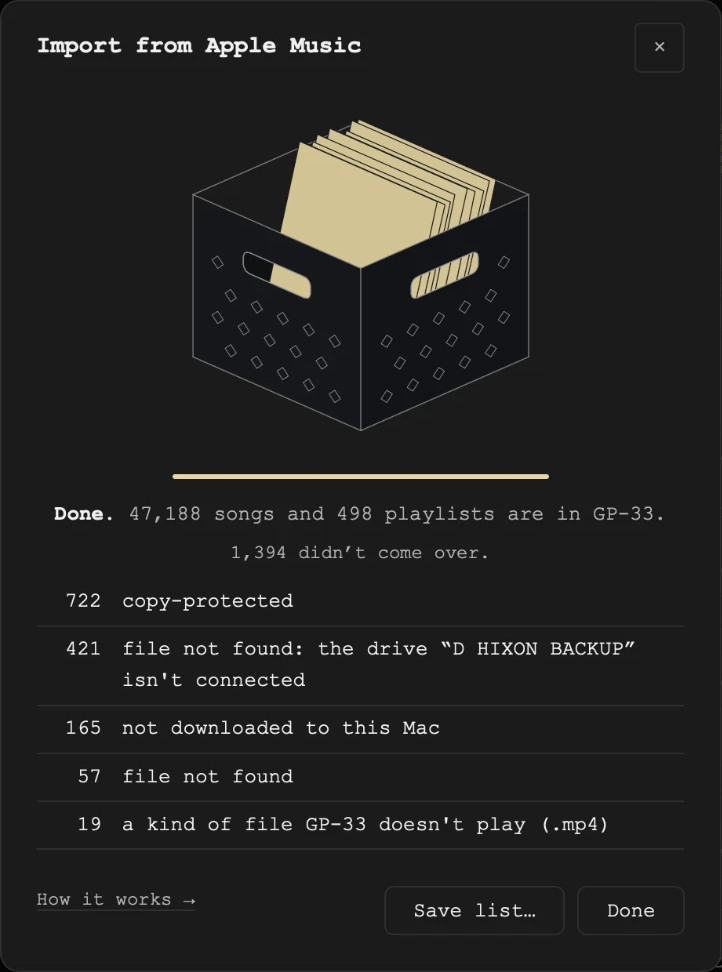
When it's done, the panel comes back by itself with the result: how many songs and playlists are in GP-33, and what didn't come over, by reason. Save list… saves those songs as a spreadsheet.
Right after a big import, GP-33 measures the volume of any songs Apple Music hadn't, for Sound Check. On some Macs the scrolling display on the deck can move a little less smoothly while that runs. It's a one-time thing, and it passes once those songs are measured.
Room on your Mac
When Apple Music's songs are on the same disk as your GP-33 library, they come over as copies that take no extra room. Each one is still a complete song of its own: delete it from Apple Music and it plays on in GP-33.
Songs on another disk are copied whole, and those need the room the preview shows.
Stop and Carry on
Stop asks first, and Keep importing carries on. Stop finishes the song in hand, and everything that came over stays.
Carry on picks up where it stopped. Your playlists come over when an import finishes.
What comes over
- Your songs, filed by artist and album.
- Your playlists and their folders, in the same places.
- When each song was added, so Recently Added shows your library's real history.
- Apple Music's Sound Check reading for each song, so GP-33 plays them at an even volume from the start.
What doesn't
- Copy-protected songs, from Apple Music's subscription catalog.
- Not downloaded to this Mac. Songs that only live in the cloud.
- A kind of file GP-33 doesn't play, such as videos.
- File not found. When a song lives on a drive that isn't connected, the list names the drive. Connect it and import again.
- Apple Music's own built-in lists, like Music and Downloaded.
Importing again
Import again any time, to bring over new songs and playlist changes. It never undoes what you've done in GP-33: a song you added to a playlist stays, and a song you removed stays removed. Songs, playlists and folders you deleted in GP-33 don't come back.
What we never do
We never change, move or delete anything in Apple Music. Everything happens on your Mac, and nothing about your library leaves it.
Still need help? hit us up.